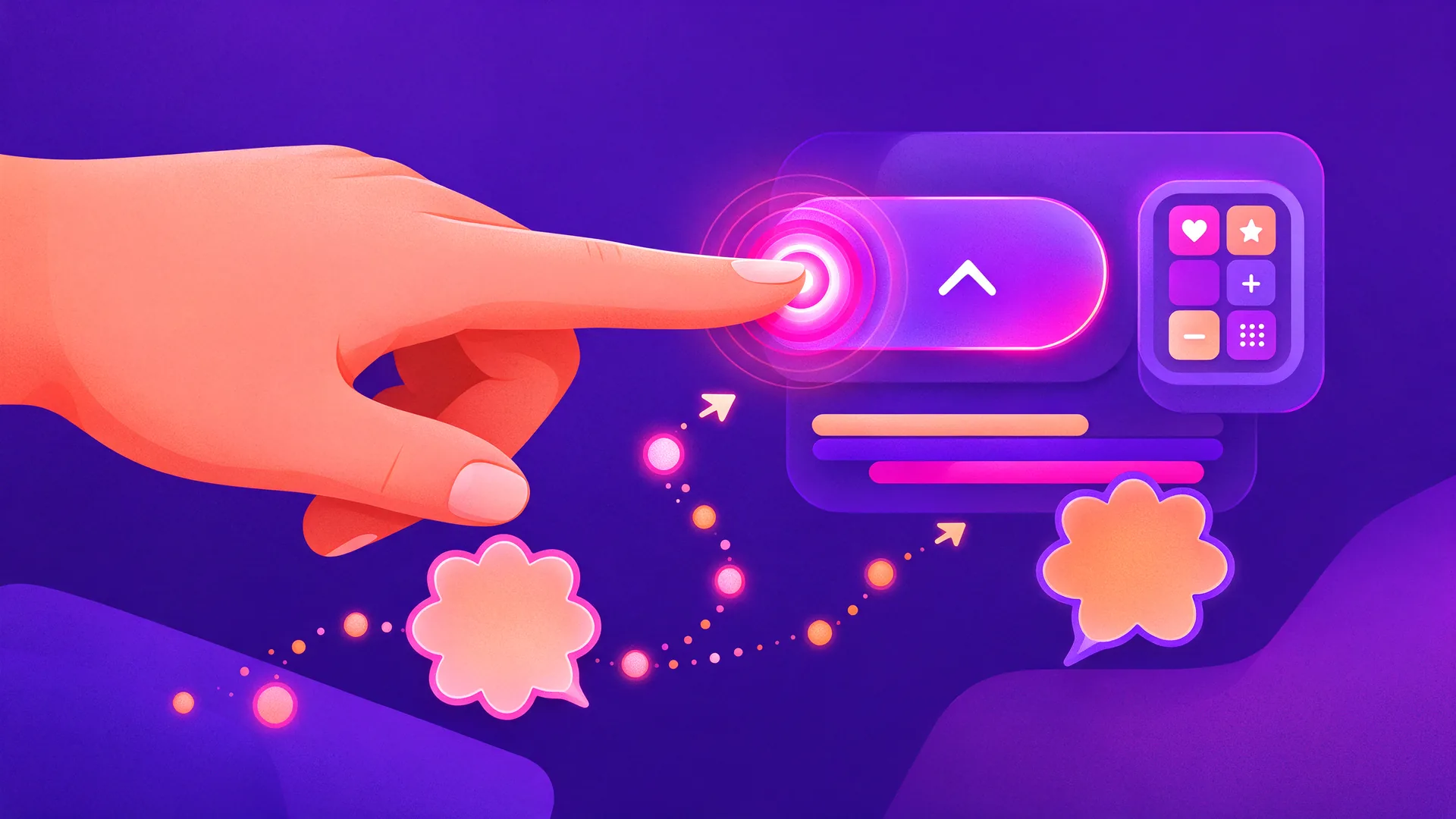
Good software tutorials not only explain what a user needs to do, but also convey where attention should be focused, what changes, and why a step makes sense. This is precisely where animation UX principles make the difference. With purposeful movement, clear timing, and smart feedback, a tutorial becomes easier to follow, less burdensome, and more effective to use. On this page, you will read which UX principles are relevant, how to use animation in software tutorials, and which tools are suitable for putting this into practice.
When explaining software, the biggest challenge is often not the content, but the cognitive load. Users must simultaneously watch, understand, remember, and execute. Animation helps to structure that process. A subtle highlight, smooth transition, or clear status change immediately reveals what is important and what the next step is.
Good animation is not merely decorative. In UX, movement revolves around guidance. Think of a cursor that shows exactly where a setting is located, a soft zoom to a relevant interface element, or a progress indicator showing that a task is still in progress. As a result, the tutorial feels more logical, and the likelihood of users dropping out or making mistakes decreases. For complex UIs and flows, a SaaS software explainer often serves as a clear framework for the explanation.
Therefore, one basic rule applies to software tutorials incorporating animation UX principles: every movement must be functional. If animation does not add explanation, focus, or feedback, it distracts rather than helps. For step-by-step explanations, a software manual animation that directs the focus for each action is more appropriate.
Timing determines whether a tutorial feels pleasant or rushed. A highlight that appears too briefly misses its mark. A transition that takes too long makes the tutorial slow. In software tutorials, timing must be primarily geared towards comprehension. The user must be given sufficient time to perceive a button, menu, or workflow step before the next action starts.
In practice, a short, clear movement usually works better than an elaborate animation. Think of a quick fade-in of a tooltip, a subtle slide to a side menu, or a brief delay before a click action is executed. This gives the viewer just enough processing time without the flow coming to a standstill.
Easing describes how an animation accelerates and slows down. Linear movement often feels artificial, whereas a natural start and stop look more pleasing. In tutorials, this is important because unnatural movement can quickly appear robotic or shaky.
A cursor that does not jump abruptly but moves smoothly to an action point looks more believable and attracts attention better. The same applies to panels that slide into view or notifications that appear. By applying easing effectively, the explanation feels less mechanical and the interface remains recognizable as the real environment in which the user will soon be working.
A common mistake in software tutorials is that elements suddenly disappear or appear without context. To the user, this feels as if parts are jumping around randomly. Spatial orientation clarifies how screens, windows, and interface elements relate to one another.
If a settings menu opens from an existing icon or a side panel slides back to its original location, the user understands the interface more quickly. This is particularly helpful for more complex software, dashboards, and tools with many layers of navigation. This is essential, especially in onboarding animation, training, and e-learning animation. Within structured learning paths, e-learning animation this continuity.
Movement automatically attracts attention. Therefore, animation is ideal for showing the user where to look. In software tutorials, this can be done with a pulsating button, a temporary highlight around a field, or a subtle zoom on a crucial part of the screen.
This principle works particularly well when a lot of information is visible at once. Instead of explaining everything, you show the viewer immediately which element is relevant at that moment. This speeds up understanding and makes the tutorial calmer.
A tutorial feels stronger when actions flow logically into one another. Visual continuity means that screen transitions, status changes, and interactions do not stand alone, but form one continuous experience. The user must be able to follow what just happened and what the result is now.
For example: a click on a button is followed by a loading status, then a confirmation or a new screen. Making that chain visible builds trust. This is essential, especially in onboarding animation, training, and e-learning animation.
The strongest UX principle for animation in tutorials is perhaps simplicity. The more effects moving simultaneously, the harder it becomes to follow the core action. That is why minimal, focused animation almost always works better than visually impressive motion for the sake of motion itself.
For every scene, ask yourself: does this movement help the user understand what is happening more quickly? If not, the animation can usually be shorter, more subtle, or removed altogether.
Micro-animations are small movements that confirm or clarify an action. Think of a button that becomes active, a checkbox that is checked, or a notification that appears briefly after saving. In tutorials, these types of animations show the effect of an action. For more background and concrete patterns, see micro-animations for better UX.
When software needs a moment to load, export, or synchronize, feedback is indispensable. A progress bar, spinner, or status indicator prevents uncertainty. In a tutorial, you use this not only to show the interface but also to set the correct expectations for the user.
Navigating menus, tabs, dropdowns, and side panels helps to understand structure. This is particularly valuable in tutorials for complex software, as it allows users to learn more quickly where functions are located and how different components relate to each other.
In a software tutorial, you often switch between states, screens, or modules. Smooth transitions ensure that these transitions do not feel abrupt. This keeps the explanation logical and prevents viewers from losing their orientation.
The best tool depends on the goal of the tutorial. Do you primarily want to enrich screen recordings, demonstrate an interactive prototyping flow, or create a fully animated instructional video? That difference determines which software makes sense.
Figma is suitable when your tutorial is closely linked to UX design and prototyping flows. You can show screens, states, and simple transitions without immediately setting up a full motion workflow. For early product explanations or UX validation, that is often sufficient.
After Effects excels at detailed instructional animation, motion overlays, focus animations, callouts, and visual guidance on top of screen content. If you want to create software tutorials that not only inform but also provide clear direction, this tool offers extensive control over timing, easing, and hierarchy. To clearly explain technical functions and interactions, you can work from a technical instructional animation.
These tools are useful when interaction behavior is central. They help demonstrate animation logic, states, and user responses more realistically than with static mockups. Especially for UX teams, these are useful tools for testing flows before they end up in a tutorial or production version.
For digital products where animations ultimately need to be actually implemented, Lottie, CSS animations, and GSAP are relevant. They are less intended for classic tutorial production, but are particularly valuable when design and development need to align.
The best choice is usually not the tool with the most features, but the tool that suits the level of detail, the desired output, and the team working with it.
A tutorial works best when each scene supports one clear task. For example: logging in, exporting a report, or adding a user. Only then do you determine which animation is needed to clarify that step.
Do not let the entire screen demand attention at once. Use highlights, zooming, or cursor movement only when an element is relevant. This keeps the viewer focused.
A click must visibly lead to a change. For example, an opened menu, a status message, or a confirmation. This makes tutorials more credible and educational.
If one step is lightning fast and another unnecessarily slow, a tutorial feels restless. A consistent animation style and timing make the experience more professional and easier to follow. Furthermore, audio and voice direction help carry the rhythm and increase comprehensibility; see voice-over and audio design for instructional animations for practical tips.
A tutorial can be visually appealing yet turn out to be unclear. Therefore, test whether someone without prior knowledge understands what is happening, where to look, and what the next step is.
Not every organization needs to produce software tutorials incorporating animation UX principles in-house. Especially during onboarding, e-learning, software training, or for complex user flows, external expertise can save a significant amount of time. Consider assistance with scripts, storyboards, motion design, and translating complex software steps into clear visual explanations.
Animation Agency focuses on instructional animations and micro-animations that make information more understandable and user-friendly. Especially when you want to explain software without an overload of text or separate screen recordings, that combination of instructional design and animation can yield significant results. This approach is particularly relevant for organizations looking to develop a targeted software tutorial animation.
Make complex information clear, understandable, and convincing

Animation UX principles are guidelines for the functional use of movement within digital experiences. Think of timing, easing, focus, spatial orientation, and clear feedback. The goal is not decoration, but improved comprehensibility and usability.
Because software tutorials often convey a lot of information in a short time, the right animation shows more quickly where someone needs to look, what changes, and which step logically follows. This reduces cognitive load and increases the likelihood that users will actually remember the action.
That depends on the goal. Figma, ProtoPie, and Framer are suitable for prototyping and UX flows. For detailed instructional animations and motion overlays, Adobe After Effects is often the strongest choice. For implementation in digital products, Lottie, CSS, and GSAP are relevant.
A standard tutorial primarily shows which steps to follow. A UX-driven tutorial also clarifies why things happen, where the focus should be, and how the user is mentally guided through the interface. As a result, the explanation feels calmer and clearer.
No. Animation is only useful if it improves understanding, focus, or feedback. In some cases, a static explanation is sufficient. The added value lies not in more movement, but in better-chosen movement.
By keeping animation short, focused, and consistent. Use movement only on the element that is important at that moment. Avoid excessive effects, unexpected directions, and too many simultaneous visual cues.

Whether it concerns an ambition, product, process, technology, or idea: we make visible what makes it special and translate it into imagery that is clear, convincing, and impossible to ignore.