
Variant management in 3D product visualization
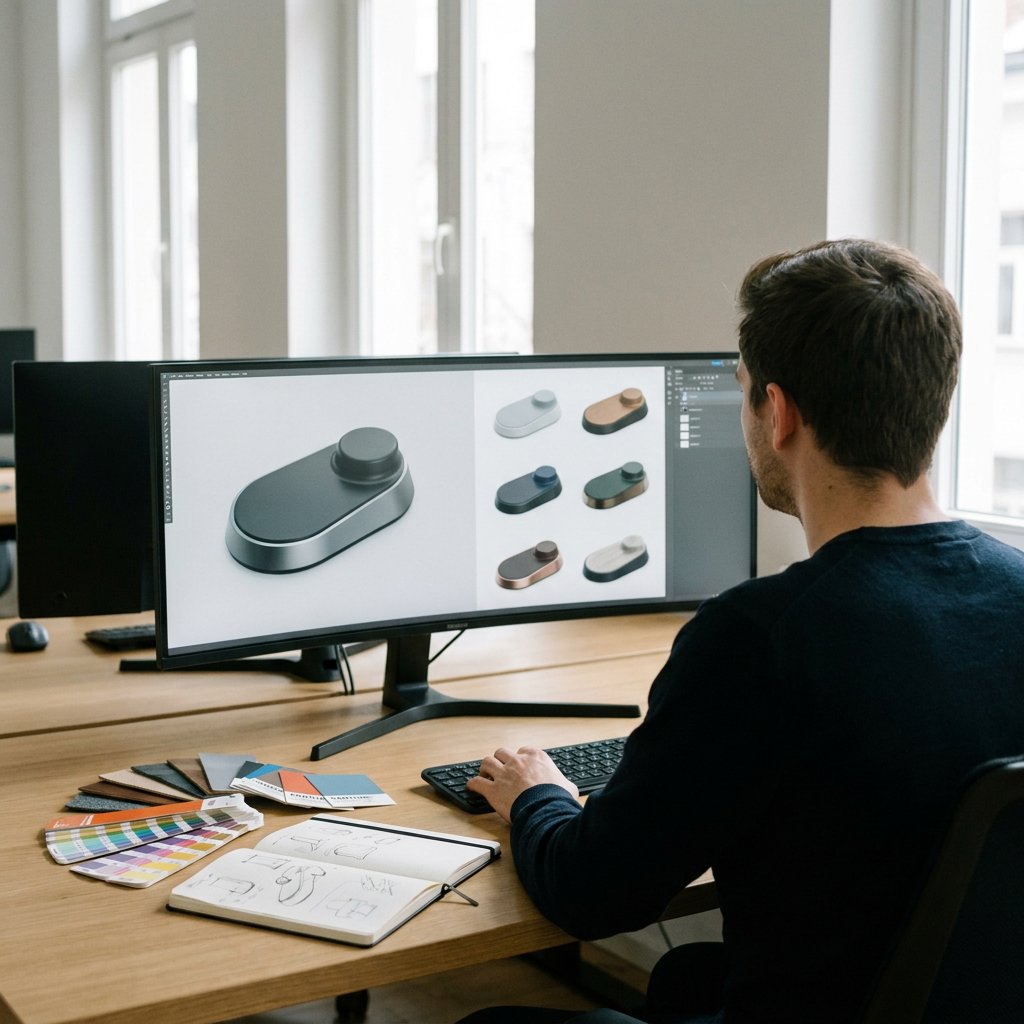
Variant management in 3D does not start with individual images, but with a single smartly constructed base model in which options such as color, material, size, modules, and accessories are controlled and defined. As soon as a product line acquires multiple combinations, renders, animations, and revisions quickly get out of hand without such a structure. A good variant setup therefore ensures not only consistent product visualsbut also better alignment between product data, updates, and the collaboration between engineering, marketing, sales, and content production.




Why product variants in 3D quickly become cluttered
With a single product featuring three finishes, four sizes, and two accessory packages, you are quickly no longer talking about a few images, but about dozens of possible combinations. For simple products, this can still be managed with separate files, screenshots, or a spreadsheet. With broader product families, however, this becomes unworkable: references contradict each other, updates get stuck, and no one knows anymore which visual is leading. A 3D model only becomes scalable when it not only looks good but can logically and reliably carry variant information. If you want to clearly map out product families, modules, and compatibility, choose a product ecosystem visualization.
The basis of scalable variant management
The most robust approach starts from a single master model. In it, you define fixed components correctly just once and build up modifiable elements as managed option blocks. Think of geometry per size or version, materials and colors per finish, labels per market, and accessories per configuration. You retain what does not need to change per variant: camera angles, lighting, cropping, and brand guidelines. This ensures that the comparison between variants remains fair and consistent. Indispensable elements in this regard are fixed naming conventions, a clear variant matrix, and simple version control. If product teams and visualization use the same structure, you can reuse the same source much more efficiently for renders, product explanations, and technical visuals.
Which product data do you link to a 3D model?
Not every data field directly drives the image. Some fields change the model or appearance, while others primarily assist with selection, filtering, and approval.
| Data field | Does it drive the image directly? | Role in variant management |
|---|---|---|
| Article or SKU code | No | Reference for the correct variant, review, and output selection |
| Dimensions | Yes | Determine geometry, proportions, and sometimes the framing |
| Materials or finishes | Yes | Control surface, texture and overall appearance |
| To colour | Yes | Determine color variants and brand-specific versions |
| Modules or configuration | Yes | Switch components on or off within the master model |
| Accessories | Yes | Add optional components per assembly |
| Technical specifications | Sometimes | Support call-outs, filtering, approval, and coordination with engineering |
By linking this data to the same source, you prevent information loss between engineering, sales, and content production. Therefore, designate one clear source for variant data and streamline the transfer from CAD to renders with CAD to marketing visualization.
Make complex information clear, understandable, and convincing
This is how you set up an efficient 3D variant workflow
It is best to build a scalable workflow in a fixed order:
- First, define the variant logic: which combinations are allowed, which are not, and which fields determine the display and selection for configurator visuals.
- Next, build the 3D structure around those rules, with a master model, consistent naming, and clear links between parts and data.
- For complex product lines or dispersed source data, create a proof of concept first. This allows you to test early on whether the variant rules work well technically and visually.
- Only define the desired outputs and review rounds after that. Have teams approve not only the final images, but also the variant matrix, labels, and underlying data structure.
- Configure the workflow so that new finishes, accessories, or regional versions can be added later without rebuilding the model.
Do new options or colors need to be rolled out in bulk later? Then scale this up responsibly with Visual Automation.
From variant structure to output: which visualization form fits?
The right form of 3D product visualization depends on exactly what the variant needs to communicate.
- 3D product renders or 3D rendering are often sufficient for fixed variants, catalog images, webshop content, and product launches.
- Product animation makes more sense if variants affect functionality, usage situation, or assembly.
- Technical animation helps when differences need to be explained functionally or technically.
- Exploded-view animation is best suited when internal components, structure, or assembly differences need to be made visible.
With a good variant structure, you can produce multiple of these visualization forms from the same source.
What goes wrong without a good 3D variant structure
Without a proper 3D variant structure, knowledge becomes fragmented across separate renders, screenshots, and spreadsheets. This results in small deviations that later become significant: an old color persists, an accessory is missing, or an update is only implemented in a portion of the variants. This not only leads to duplicated work but also hinders reuse in sales materials, product explanations, and training content. In practice, therefore, the largest cost often lies not in the modeling itself, but in recurring revisions due to weak data and version control.





Ready to take your A to AA?
Whether it concerns an ambition, product, process, technology, or idea: we make visible what makes it special and translate it into imagery that is clear, convincing, and impossible to ignore.